Editing videos

Capturing still images from a video
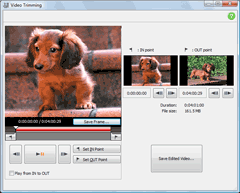
Click [Save Frame] in the Video Trimming window to save the current frame as a still image. The file of the still image is saved in the same folder as the original video.
For details on the basic operations of editing videos, refer to the “PMB Guide” supplied with the software (“PMB Guide”).
-
In the main window, select the video from which you want to capture still images.
The selected videos are marked with a blue frame.
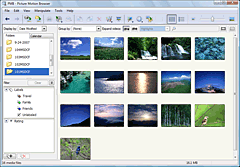
-
Click
 at the top of the window, and select [Video Trimming].
Or, select [Video Trimming] in the [Manipulate] menu.
The [Video Trimming] window is displayed.
-
Click
 to start playback. Pause at the frame you want to save as a still image, and then click [Save Frame].
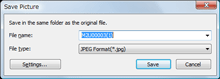
The [Save Picture] window is displayed.
-
Click [Save].
 Hint
- The captured image is saved in the [My Pictures] folder in the default settings.
Hints
- Still images are saved in high resolution. By clicking [Settings] on the [Save Picture] window, you can adjust the settings for picture resolution, noise reduction, and color correction.
-
When the [Increased picture resolution] check box is checked, videos are saved at one of the following sizes by interpolating data from the video data before and after the captured frame.
- Videos with HD (high definition 720p) image quality : 2,304 X 1,296 pixels
- VGA quality (640 X 480) videos : 1,280 X 960 pixels
|
Copyright 2008 Sony Corporation
|
P0221-01-US
|